How to use SwimInSight
The daily flow
1. Plan the session
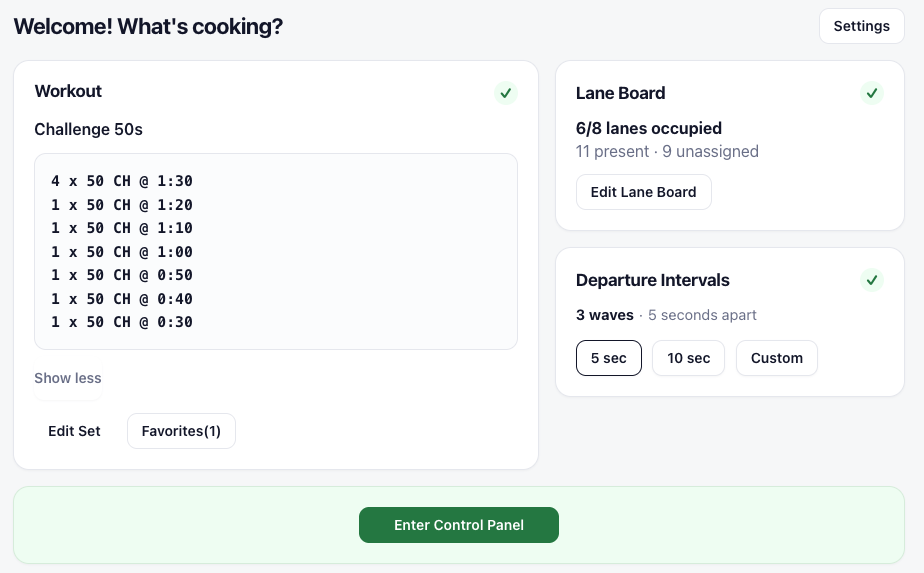
Use the Session Planner to update the Lane Board, write the workout in the Set Editor, and add departure intervals where applicable. You can plan the set before arriving at the pool, or create one on the fly:
2. Connect and sync at the pool
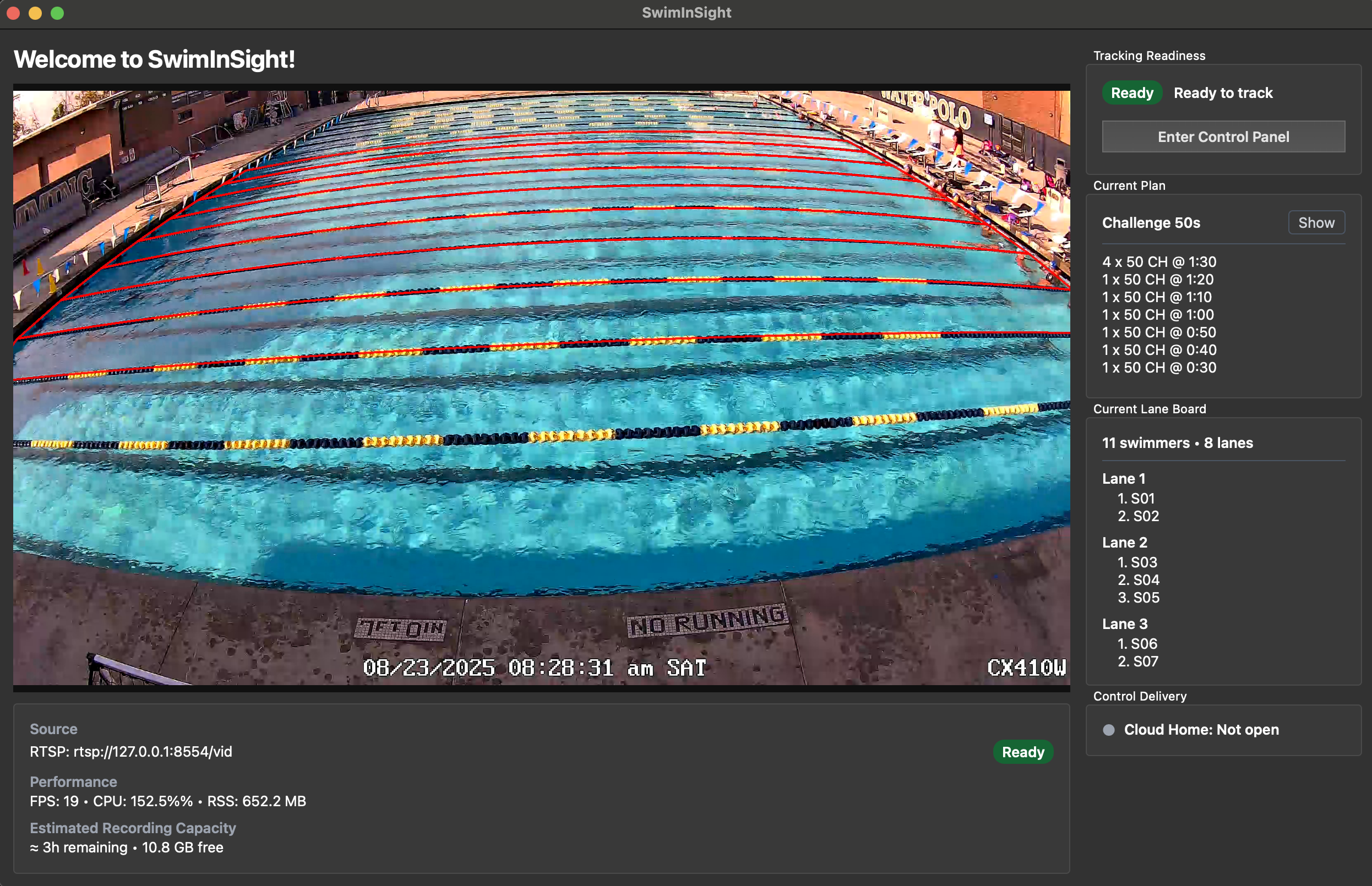
Ensure the computer is connected to the camera and WiFi, then start the SwimInSight app. The camera feed should be visible on the computer screen, and the session plan syncs automatically from the cloud dashboard.
3. Control tracking from your phone
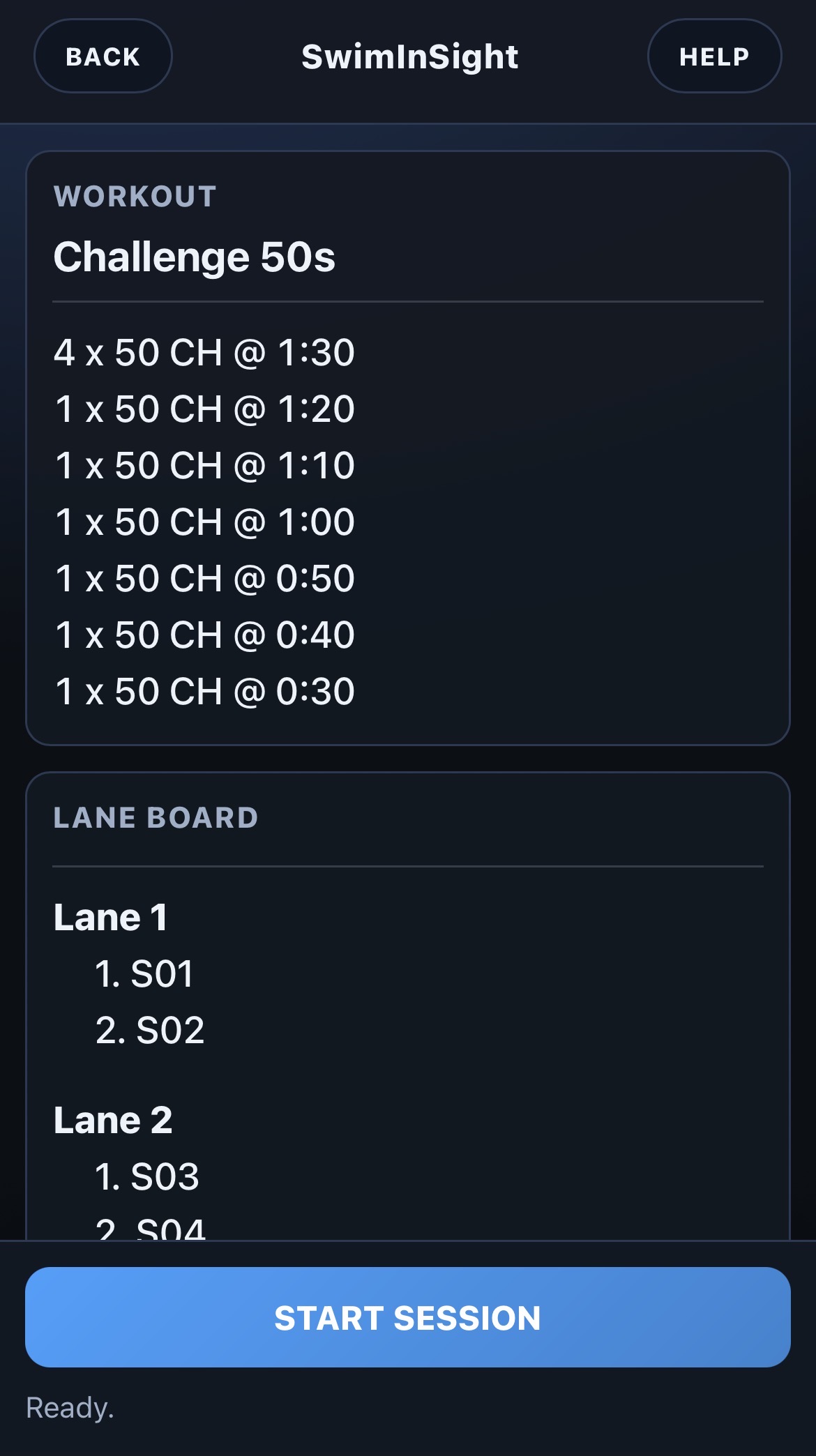
Open the control panel on a phone to start and control tracking. Press START SESSION when the set begins:
4. Review the session
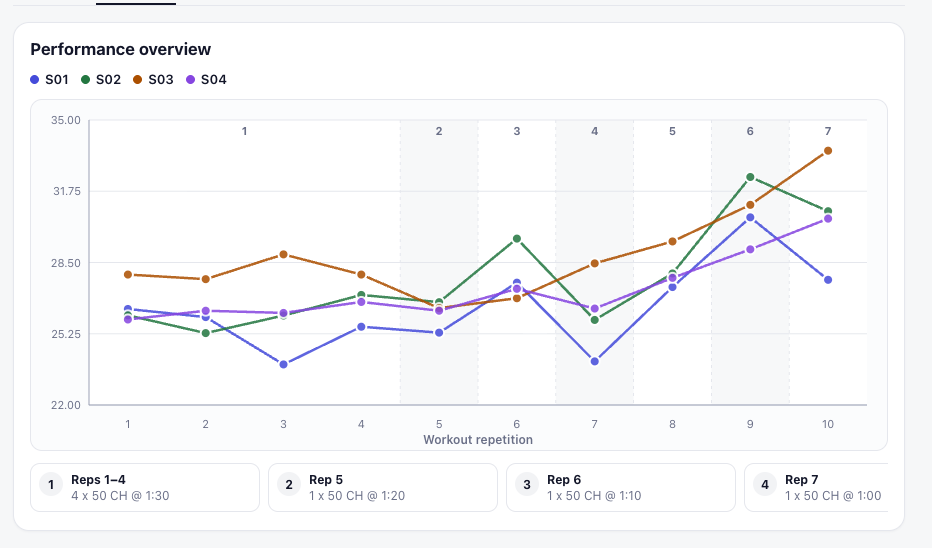
After tracking ends, results, analytics, and replays are available in SwimInSight’s cloud dashboard:
Best practices for good tracking outcomes
- Start tracking on time. Press START at the moment swimmers begin the set - like you’re starting a stopwatch.
- Keep swimmers in their assigned lanes. Once tracking begins, swimmers should remain in the same lane and complete the set - no “bathroom breaks” or stopping on the wall!
- Maintain swimmer order within each lane. Swimmers should not pass one another or change order during the set.
When SwimInSight is watching, swimmers only have to follow one simple rule: swim like you mean it.
The camera setup
The camera is a one-time installation. Camera placement guidelines:
- Mounted in a fixed position on a wall or pole along the side of the pool (no handheld camera)
- At least 15 feet above the surface of the water and angled downward
- Able to see all corners of the lanes you wish to track
- As high as practical to provide a clear, elevated view
The camera must be ONVIF/RTSP enabled. Most mountable, surveillance-style cameras available on Amazon in the US are.
If you plan to buy a camera for SwimInSight, contact us first.
Computer and connection requirements
SwimInSight runs on most modern computers. It works best on Macs with Apple silicon (M-series; 2020 or later) but a Windows build is also available. Contact us and let us know what type of machine you currently have.
An internet connection is required so the SwimInSight app can sync with the cloud dashboard.
What SwimInSight records
For every lap, SwimInSight records:
- Split times and final times
- Underwater breakout time and distance
- Number of stroke cycles
- Surface velocity trend